
That last bit matters more than it sounds. Stape already gives away free MCP servers for GTM, GA4, Google Ads, and Stape itself, and you can plug them into the Claude desktop app. But they need Node.js, a config block, and your credentials sitting on your machine. The AI Assistant runs in the browser, so you can give it to a teammate who shouldn't be handling API keys.
What you need first
Your account has to be Standard and in the Global location. You also need a payment method on file and at least one product. If either is missing, the AI Assistant button won't show up in the menu.
It's paid and capped at 100 messages a month, according to Stape's own blog. So spend them on real work.
How it works
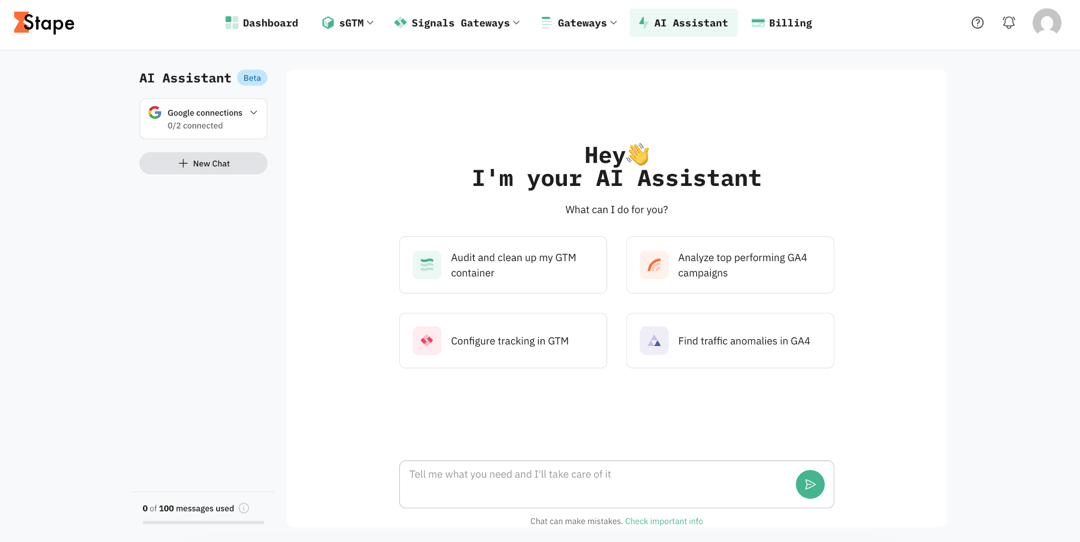
Log in and click AI Assistant in the top menu. You get a full-screen chat where you can type a request or pick a suggested prompt. Keep the conversation going with follow-ups, ask for changes, or ask it to explain what it just did. Each chat gets named after your first message, which makes old ones easy to find.
Stape's docs suggest a few starter prompts.
- "Create a new sGTM container named My Web Store."
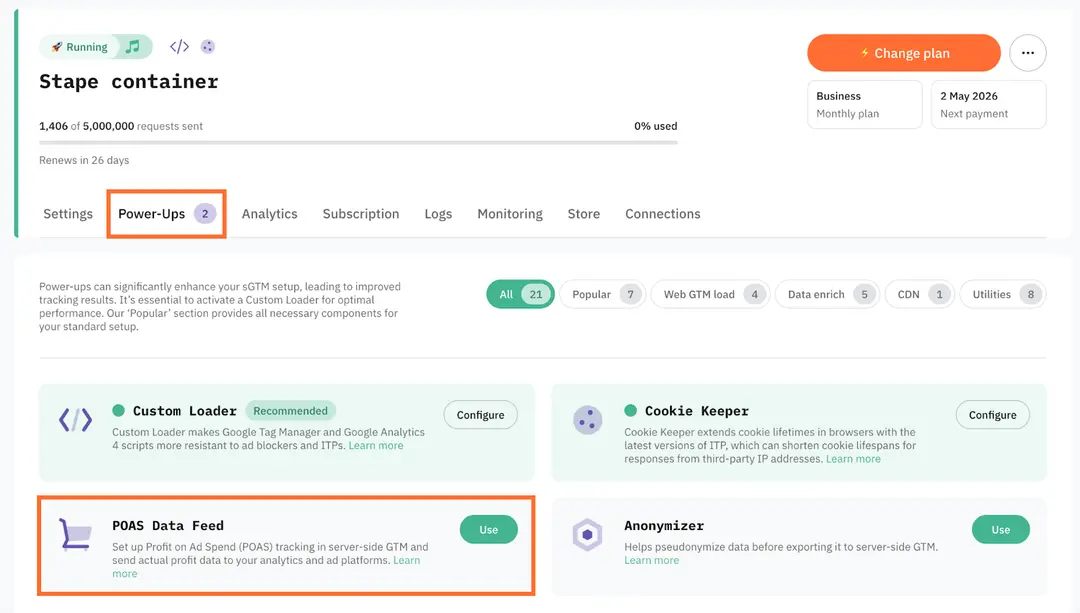
- "Which power-ups do I currently have active?"
- "What is my sGTM container billing plan and usage?"
Connect your Google accounts
The assistant becomes much more useful once it can access GTM and GA4. Open Google connections, pick Tag Manager, GA4 or both, click Approve, then sign in and grant the permissions. After that, you can ask it to list every tag in a container, remove unused variables, move your GA4 tags into their own folder, or look for unusual traffic in GA4.
You get one GTM account and one GA4 account at a time. The connection covers every chat in your AI Assistant space, so you only set it up once. To switch accounts, disconnect the current one first.
Before it touches a live container
Look, AI in GTM is fast. It's also confident when it's wrong. Luc Nugteren wrote a guide on Stape's blog about exactly this, and his advice is worth copying into your own process.
Use a dedicated Google account with Edit rights in GTM, added at the container level. Don't sign in as yourself, because on most client containers that means Publish rights. Google enforces the permission on the API, so the worst outcome is a messy workspace and your live site stays untouched.
Start a new workspace for every task and name it after the job. If the session goes wrong forty minutes in, delete the workspace and every change disappears with it.
Then check the container and ignore the summary. The model writes its "all done" message from the same reasoning that made the changes. Open the Consent Overview from the shield icon on the Tags screen, because new tags default to no additional consent checks and models rarely set them. If the assistant adds a server-side version of an event that already fires in the browser, make sure both share an event_id, or your conversions will double. Run Preview, then confirm in GA4 that the data actually arrived.
Try it this week
Start with something that can't break anything. Log in, open AI Assistant, and ask for your billing plan and usage. Then connect GTM with an Edit-only account and ask it to list your tags. Hit like or dislike on each answer, since Stape uses that feedback to improve future responses.
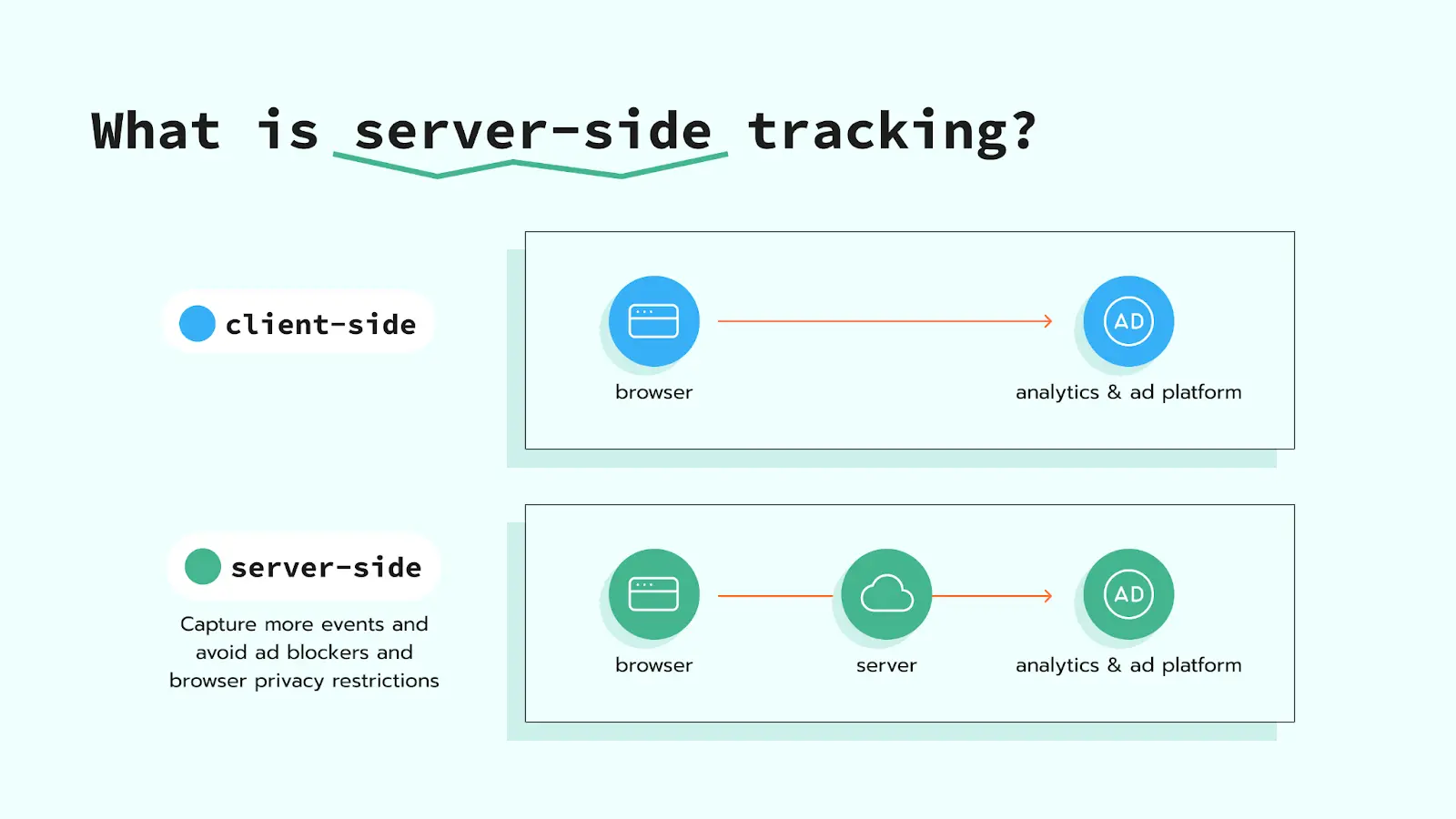
I build server-side tracking on Stape for SmartMetrics clients. If you want someone to look over your container before an AI gets Edit rights, get in touch.


 Gray Digital Group
 Blitzy
 PermitFlow
 Dj Haer Jr